

Shop


apparel


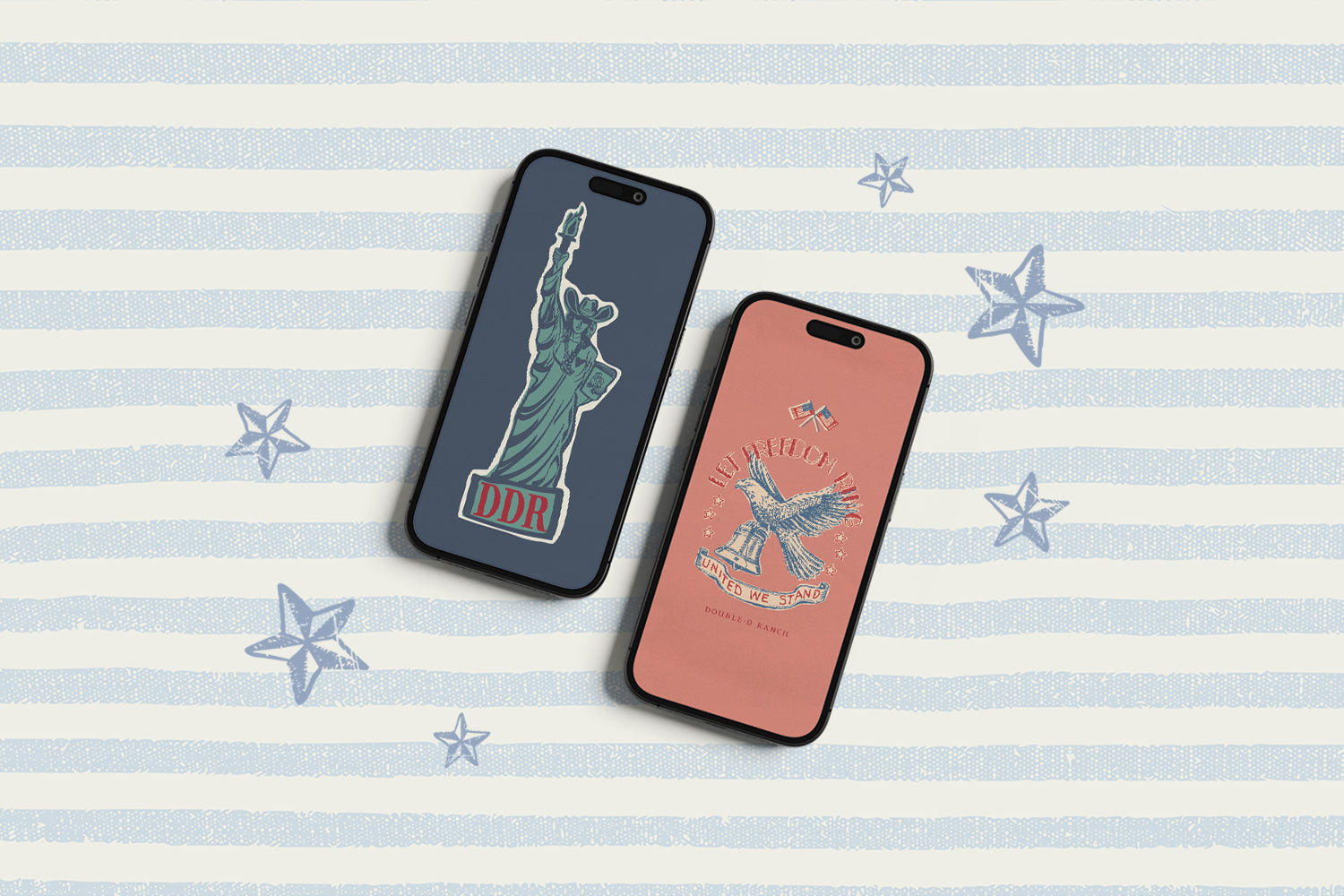

TAKE THE CELEBRATION TO YOUR SCREEN!
Let’s get this patriotic party started! In anticipation of America’s seminquincentennial – or 250th birthday – this summer, we are leaning in to all things Americana, right down to our phone screens.
This is a cute little something we started a few collections back. Our ultra-talented (and cool) graphic design team takes aesthetic elements from the collection and develops them into images that are sized to be either your home screen or your lock screen on your cell phone. The Nu Patriot versions were particularly fun because we had a lot of Americana icons to work with.
Get yours and get in on the fun! Cheers to America!
HERE’S HOW:
1.) Choose your favorite – we know it’s hard, you can go ahead and save them all if you want! – and save it to your camera roll. You can do this by pressing and holding on the image, then taking a screenshot.
2.) Open your Photos and select that photo.
3.) Press on the send/share icon in the lower left corner (it looks like a rectangle with an arrow pointing out of the top).
4.) Scroll down and select “Use as Wallpaper”.
5.) Pinch and drag to adjust it just how you like, and hit “Add” in the top right corner. Voila!
If you’d like a little more guidance, you can CLICK HERE for video tutorials for both iPhone and Android.
HERE'S HOW (for iPhone):
HERE'S HOW (for Android):
Leave a comment
Comments will be approved before showing up.